
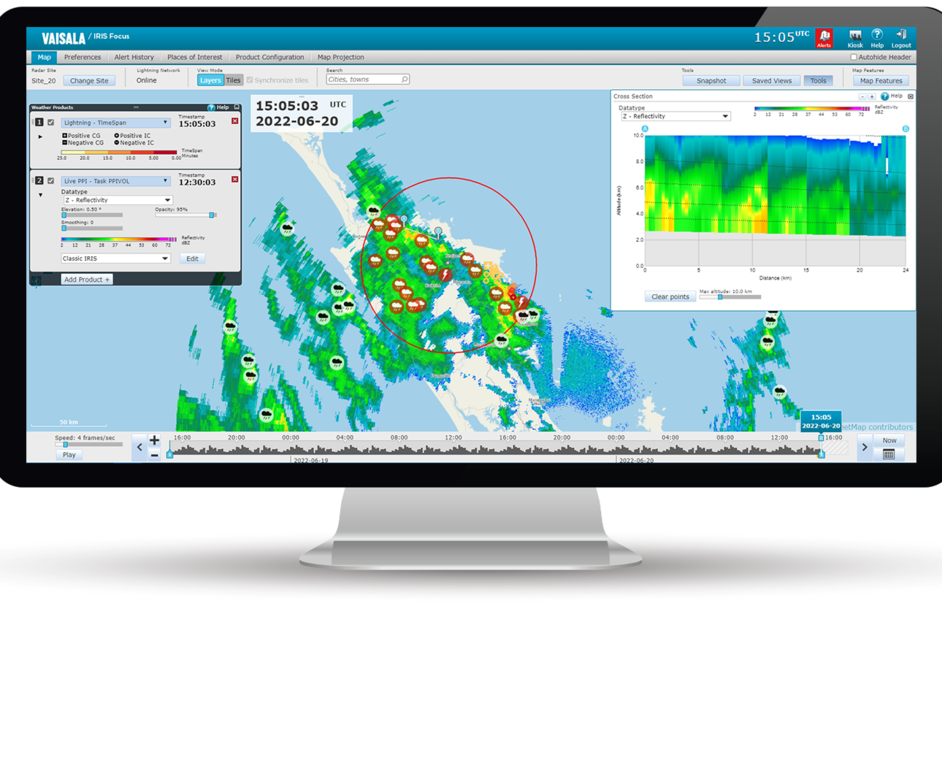
Alert history
You can view both the currently active and previous alerts in the Alert history view. To open the view, select the Alert history tab.
You can see alerts from both your personal areas of interest and from organization-level areas of interest. You can search alerts by key words, such as the weather event name, or from a certain period of time. You can filter the list to see either the active or inactive alerts, or all alerts. Click on an alert to see more details about it.
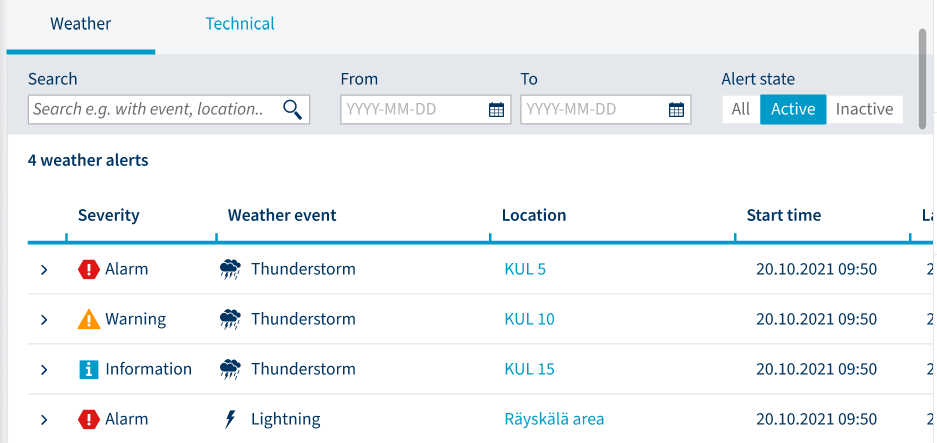
For alerts that were configured by a user with the poweruser role, the owner column says "organization".
By default, the view shows alerts from the past 72 hours.
You can export the alert list into a CSV, XLS, or HTML file.
In addition to weather-related alerts, the history view has a tab for technical alerts. These are mainly intended for system administrators. Technical alerts are related to, for example, dataflow problems.
When you are working with historical data, consider the following:
-
When you browse historical data, you see information about weather events and alerts that were recorded in real time using the event criteria setting at the time the event was recorded.
-
If you delete an area of interest or some alert criteria, the area and any recorded alerts associated with that area remain visible when browsing historical data.