
Exporting images as .png files
Use this procedure to export images as .png files.
-
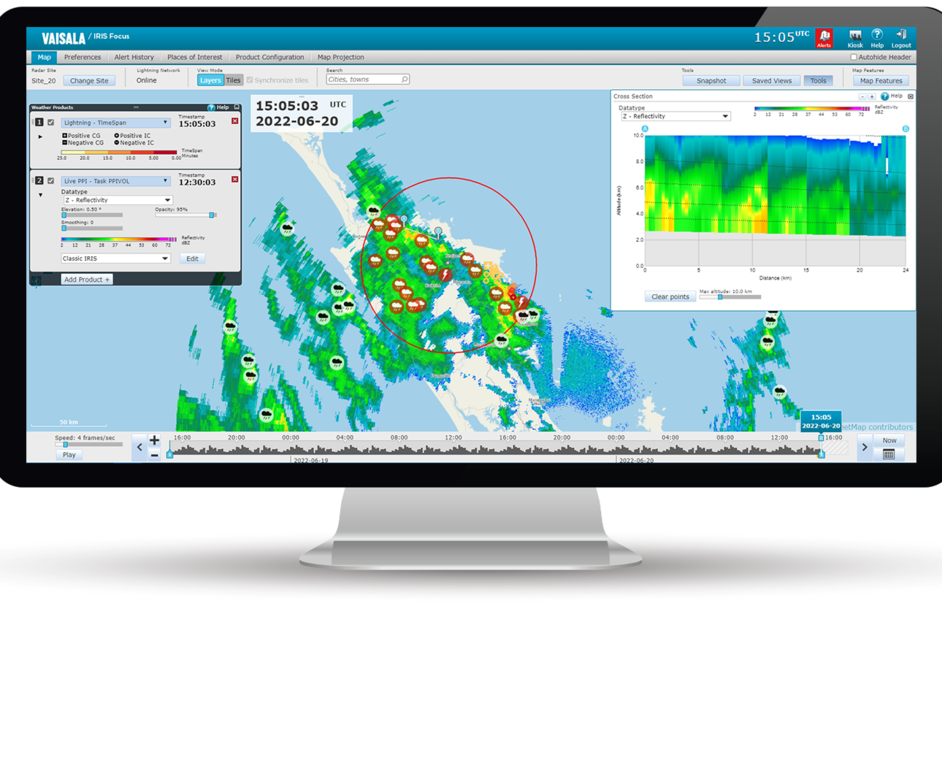
In the IRIS Focus Map view, set up the view you want to save.
For example, you can save the settings for:
- Weather products
- Map tools such as the cross-section and tracking tools
- Zoom level
- Select .
-
Name the view and select Save.
The new view is added to the Saved Views list for your future use.
-
Configure your web server to access the IRIS Focus image export service:
@Request: POST <your IRIS Focus URL>/focus-webapp/api/v2/image-export/get-image @Produces: "image/png" -
Configure the following parameters:
Parameter Description username IRIS Focus user name

For a smooth user experience, Vaisala recommends that you use the dedicated image-export account created at time of installation for exporting images. password IRIS Focus password for the user
time Time, in ISO-8601 format:
[YYYY]-[MM]-[DD]T[hh:mm:ss.sssZ]Example: 2024-06-18T16:25:23.000Z
widthPx Width of the exported image, in pixels.
heightPx Height of the exported image, in pixels.
savedViewName The name of the saved view you created in 3.
savedViewUser (Optional) Used if you configure a specific user for exporting images (recommended).
-
Instead of 4 and 5, you can run the export from the command line by creating a
script and setting-up a
cronjob. For example: