Exporting images as .shp files

Use this procedure to export images as shape files (.shp). The output is a zip file containing all the files for the shape file.

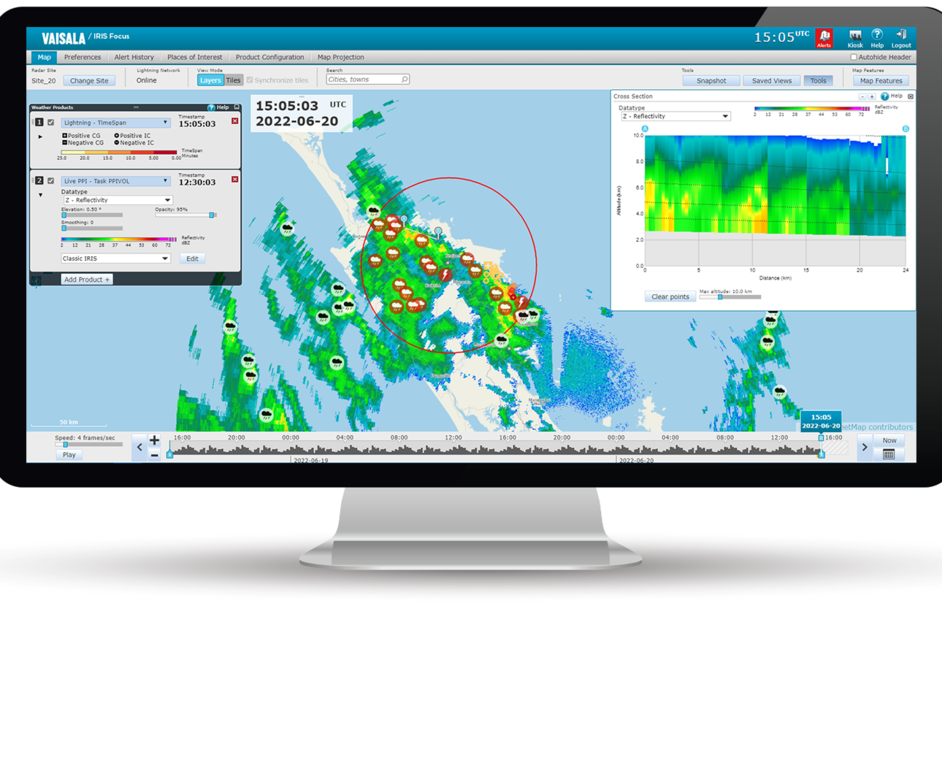
  1. In the IRIS Focus Map view, set up the view you want to save.

    For example, you can save the settings for:

    • Weather products
    • Map tools such as the cross-section and tracking tools
    • Zoom level
  2. Select Saved Views > Save.
  3. Name the view and select Save.

    The new view is added to the Saved Views list for your future use.

  4. Configure your web server to access the IRIS Focus image export service:
    @Request: POST <server-name>/focus-webapp/api/v2/image-export/shp
    @Produces: "application/octet-stream"

    The image is exported as a zip file.

  5. Configure the following parameters:
    Parameter Description
    username

    A valid IRIS Focus username.

    For a smooth user experience, Vaisala recommends that you use the dedicated image-export account created at time of installation for exporting images.
    password IRIS Focus password for the user.
    time

    Start time, in ISO-8601 format:

    [YYYY]-[MM]-[DD]T[hh:mm:ss.sssZ]

    Example: 2024-06-18T16:25:23.000Z

    savedViewName The name of the saved view you created.
    savedViewUser

    (Optional) Used if you configure a specific user for exporting images (recommended).

  6. Instead of steps 4 and 5, you can run the export from the command line by creating a script and setting-up a cron job. For example:
    1. Create a Python script for the image export such as the following:
      #!/usr/bin/python3
      from requests.sessions import Session
      from datetime import datetime, timedelta
      
      # Change to host name of IRIS Focus if run externally
      APP_URL = "https://localhost"
      
      # User account to login with to render image
      USERNAME = "image-export"
      PASSWORD = "USER_PASSWORD"
      
      # Name of saved view and user account that created the saved view
      VIEW = "SAVED_VIEW_NAME"
      VIEW_USER = "USER_THAT_SAVED_VIEW"
      
      # You can change these values
      OUTPUT_DIR = '.'   # Directory to write output file to
      FILE_BASE_NAME = "image-export" # Name of file sans extension
      SSL_VERIFY = False # Set to True if you have a valid certificate
      TYPE = "shp"       # Can be "shp" or "geotiff"
      
      # Example of backing up 5 minutes from "now" (no data at time causes 404)
      TIME = datetime.utcnow() - timedelta(days=0, hours=0, minutes=5)
      
      def main():
          ext = ".tiff"
          if TYPE == "shp":
              ext = ".zip"
          file_path = OUTPUT_DIR + "/" + FILE_BASE_NAME + ext
      
          session = Session()
          time_str = TIME.isoformat()
          url  = APP_URL + "/focus-webapp/api/v2/image-export/" + TYPE
          req_params = {"username": USERNAME, "password": PASSWORD,
                        "time": time_str, 
                        "savedViewName": VIEW, "savedViewUser": VIEW_USER}
          res = session.post(url, params=req_params, verify=SSL_VERIFY)
          print('{0} response status: {1}'.format(time_str, res.status_code))
          if res.status_code == 200:
              with open(file_path, 'wb') as f:
                  f.write(res.content)
              print('Created file: {0}'.format(file_path))
      
      if __name__ == '__main__':
          main()

      Although the example image-export.py script saves only one snapshot, you can edit it to loop a set number of times and get multiple snapshots at a time.

    2. Type crontab -e in the terminal and add, for example, the following line to the crontab file (add your own paths and arguments).
      */15 * * * * /usr/bin/python3
              /path/to/script/image-export.py >> /path/to/log/export.log 2>&1

      This executes the image-export.py script every 15 minutes and creates a single ZIP file containing the shape file components.