Animation timeline
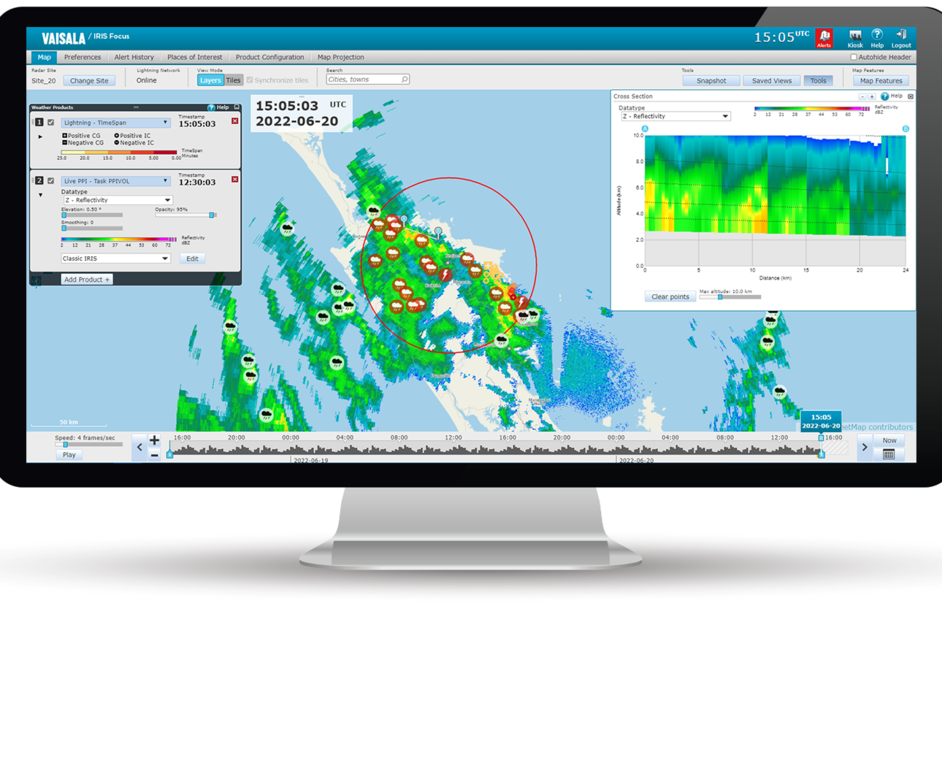
With the zoomable animation timeline, users can easily visualize and animate current, nowcasted, or historical data.
The histogram provides at-a-glance information on the amount and intensity of weather for points in time.
 |
The Lightning Threat Zone product is not displayed during animations due to the time it takes to render the threat zones. |

-
On the animation timeline, select the time of the data you want to view:
- To find an approximate time, use the < and > buttons, or pan the indicator back and forth by dragging it with your mouse.
- To zoom in and out on the level of detail, use the + and - buttons, or the scroll wheel on your mouse.
- To select a time, select the search icon on the right of the time line.
- To return to the current time, select Now.
-
To start a looping animation of the data, select Play.
- Move the start and end time indicators along the time line, or select a preset animation.
- Adjust the animation speed with the controls on the left side of the timeline.
- To set only a part of the weather history to be animated, drag the start and end points to the desired positions on the timeline. The animation settings update in real time.
- By default, the animation stops for 1 second before looping back to the beginning. To change this, select Preferences.
The length of the animation is defined by the update interval of layer number 1.
- Most radar products have an update interval of 15 minutes, but some are updated every 5 minutes or every 60 minutes.
- For most lidar products, the update interval varies from a few seconds to about 10 minutes.
- Lighting products do not have a specified update interval
-
To view and animate nowcasted radar data, drag the playback slider along the timeline
into the future.
The timestamp formatting indicates that the display is showing nowcasted data. For example: