
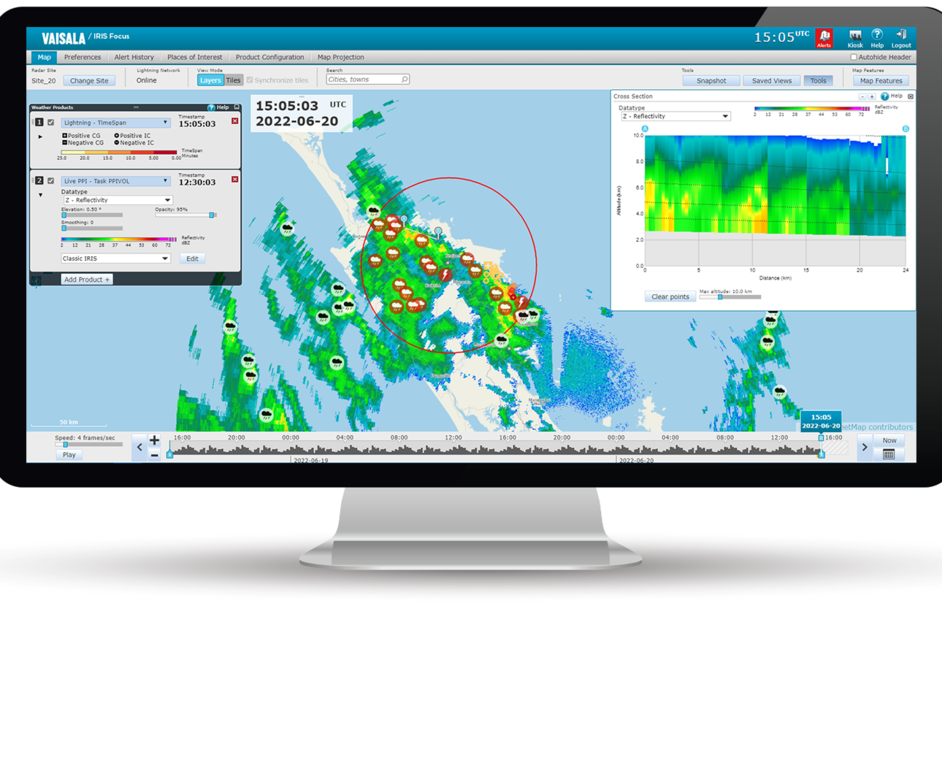
Saved views
Many IRIS Focus users work from the same Map views from one session to the next.
You can use Saved Views to save your frequently used views so they are available each time you log in to IRIS Focus.
 | If you save a view or load a saved view, the browser tab will be updated to show the name of the view, if supported by the browser. |
-
In the IRIS Focus Map view, set up the view you want to save.
For example, you can save the settings for:
- Weather products
- Map tools such as the cross-section and tracking tools
- Zoom level
- Select .
-
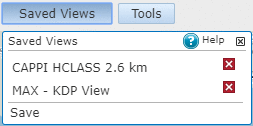
Name the view and select Save.
The new view is added to the Saved Views list for your future use.
-
To update a saved view:
- To delete a saved view, in the list of saved views, select the X next to the view you want to delete.