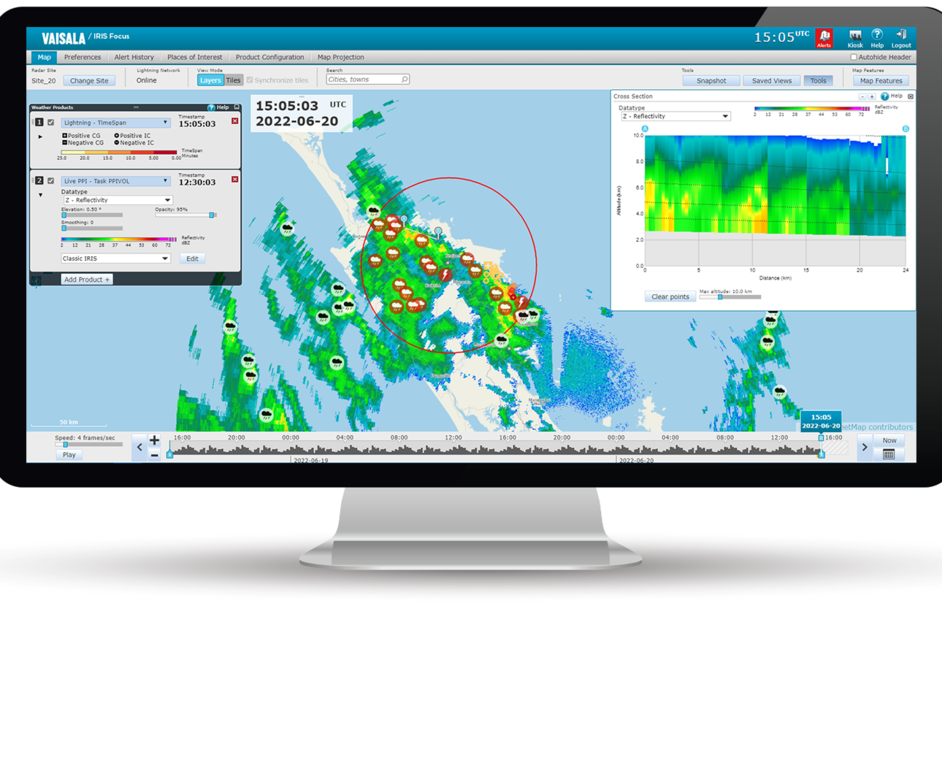
To access the editor, select
Edit on a product pane.
Figure 1. Color scale editor modes for radar/lidar
productsFigure 2. Color scale editor for lightning products
Use the color scale editor to create your own
color scales. The editor displays the current color scale gradient and presents a preview on
the left. On the right side is a list of the keypoints of the color scale.
Each keypoint sets the RGB color of a defined
value in the product, and the values between keypoints are interpolated to make a smooth
gradient. By optimizing the keypoints for site-specific conditions, you can make measurement
ranges close to each other more distinct, and improve the users' ability to perform visual
analysis on the data.
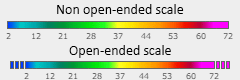
The open-ended scale setting allows you to
define how values outside the upper and lower thresholds of the color gradient are displayed
on the map. Open-ended scales continue drawing values beyond the thresholds with the same
color as the lowest or highest keypoint in the color scale. Non open-ended scales do not draw
any values outside the thresholds on the map.Figure 3. Open and non-open color scales
Using non-open scales,
especially for the low end, is an effective way to remove signal noise or clutter from the
radar product layer.
The open-ended scale and and gradients are
not applicable for lightning products.