
Creating user accounts
- Log in to the IRIS Focus web application as administrator.
- Select .
-
Choose which organization you want to create your users in.

Users with poweruser or administrator role must belong to the root organization, and root organization must be assigned rank #1.
-
In the Application
Subscriptions tab:
-
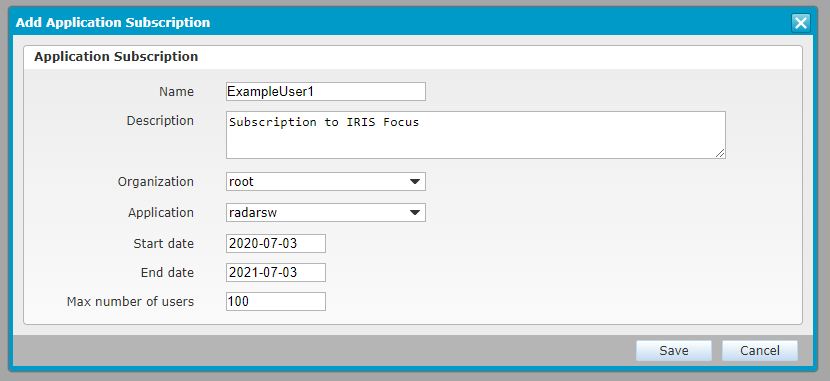
Enter the maximum number of users. This is the maximum number of users in this
organization who can be logged in to IRIS Focus at the same time, including Focus
users and Light view users.
-
Enter the maximum number of users. This is the maximum number of users in this
organization who can be logged in to IRIS Focus at the same time, including Focus
users and Light view users.
-
To add users to the organization, select .
-
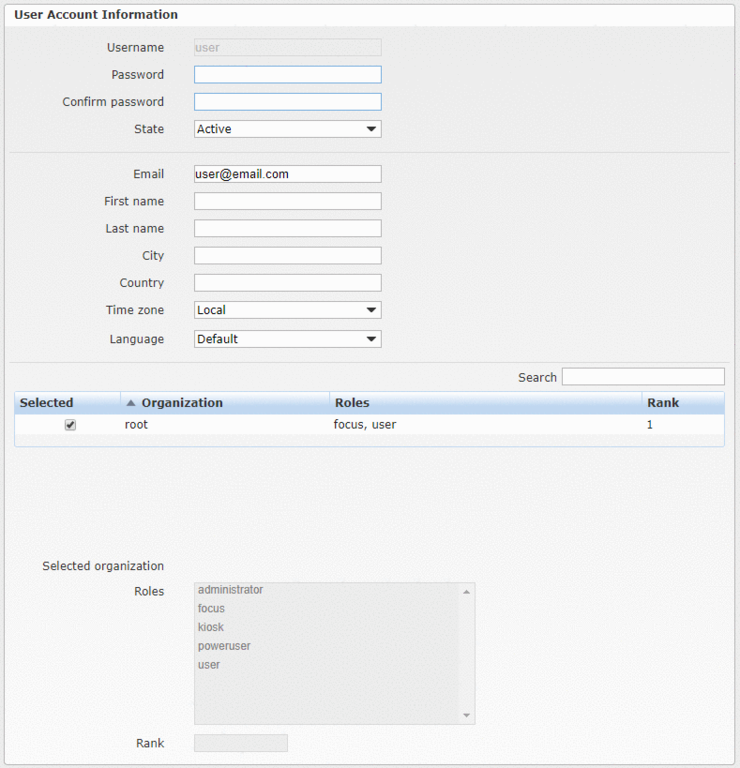
Assign roles to the user.
To avoid reserving an IRIS Focus license when performing administration tasks, the default administrator account does not have the focus role.