
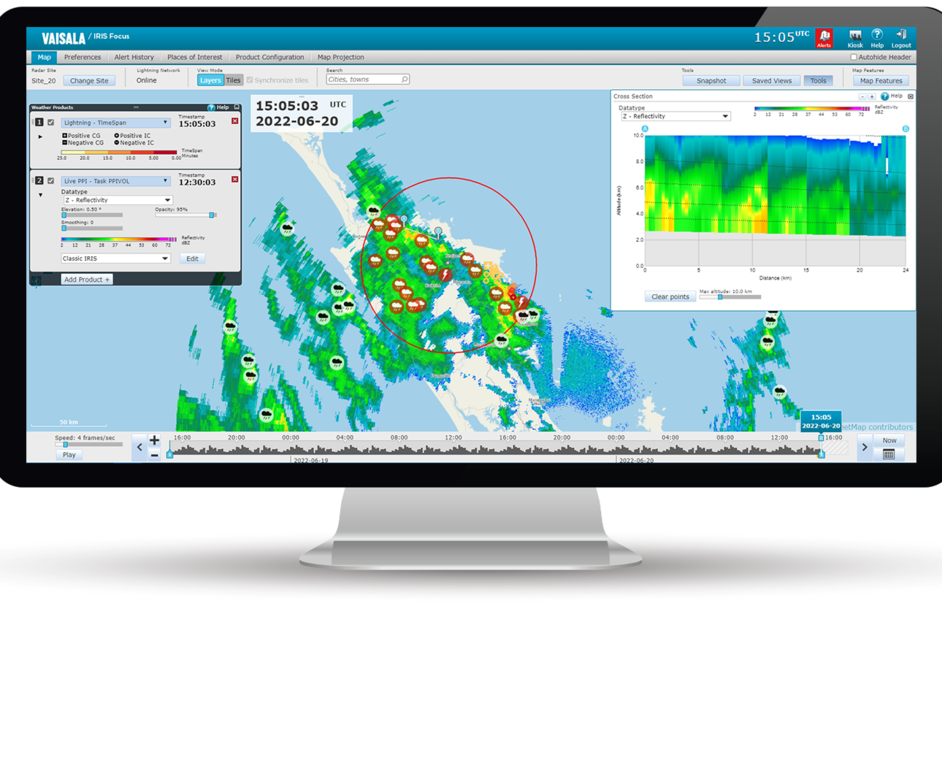
Viewing composites
IRIS Focus can create dynamic composites if
a radar/lidar sends RAW data to IRIS Analysis. In site selector mode, these
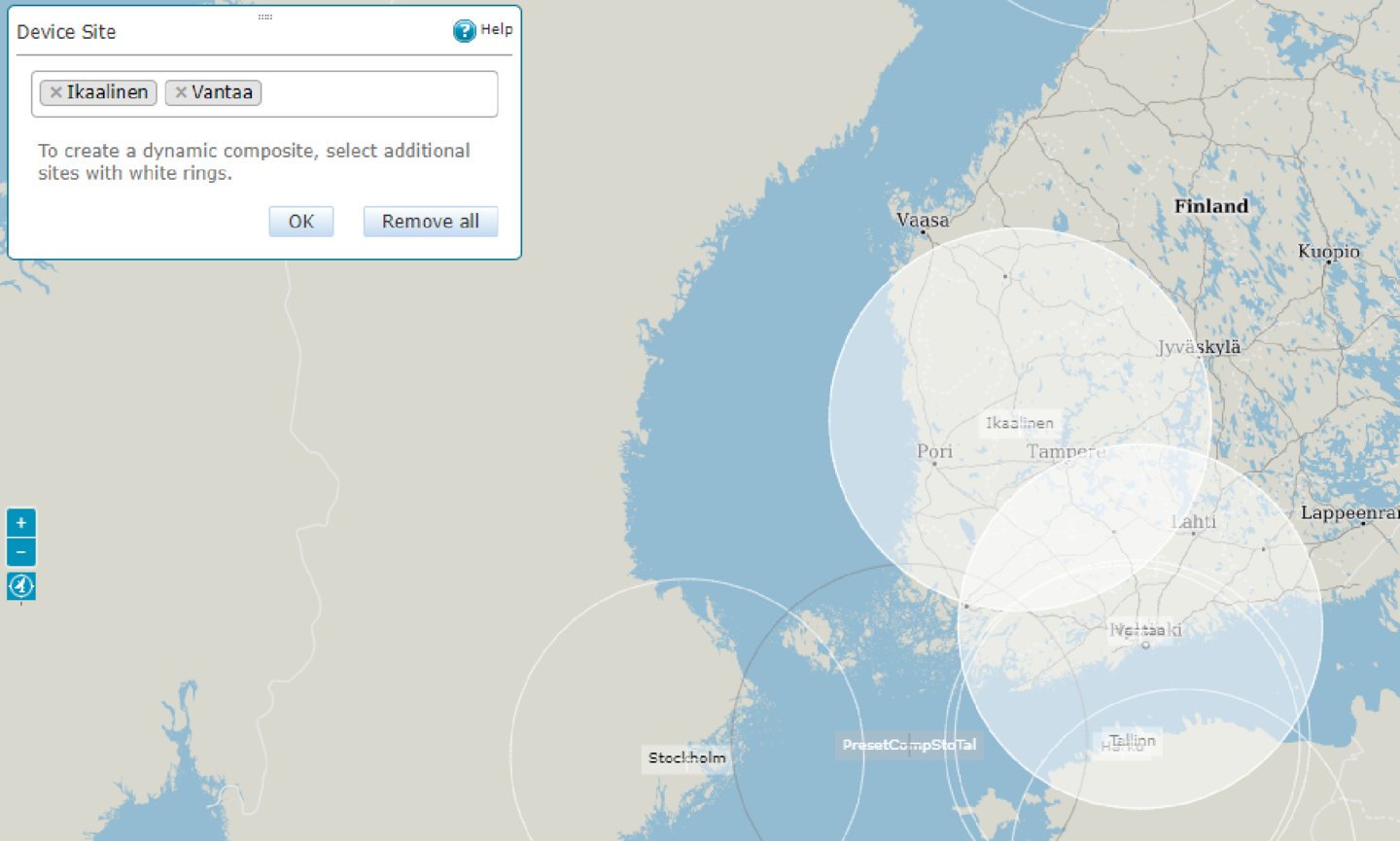
sites are indicated on the map with white rings.
Pre-configured composites, IRIS Analysis composites, and sites that do not support dynamic composites are indicated on the map with black rings. You can view radar data from these sites one at a time.
-
In the top menu, select Change Site.
The radar site selector mode starts, showing:
- A map view with the available radars, lidars, and composites shown on the map
- A site selector window listing the available radars, lidars, and composites
-
To create a dynamic composite, select more than one site.
-
On the map, select one or more site rings.
-
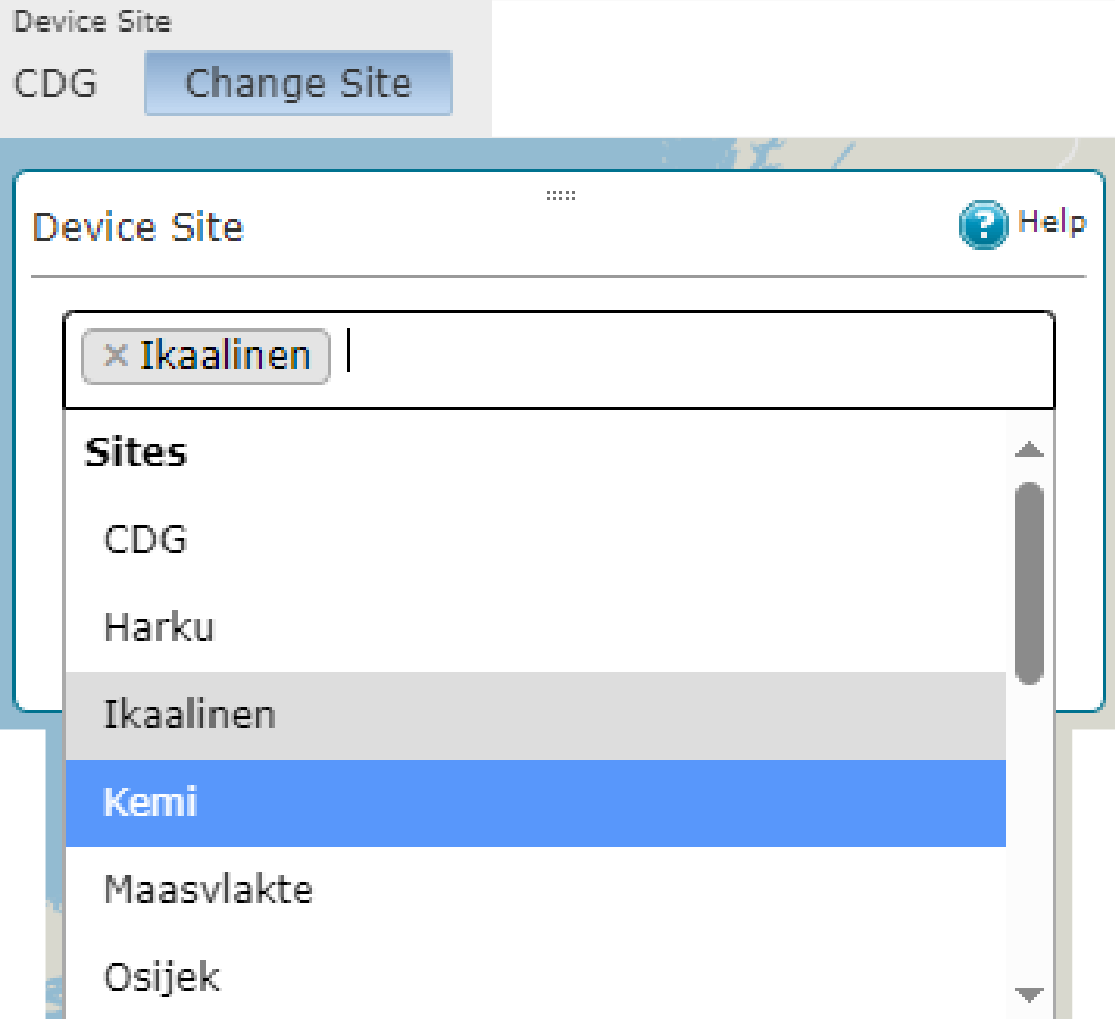
In the Change Site pane, select the site selection field to show the list of available radars and lidars, and select one or more sites on the list.
-
-
To view a pre-defined or IRIS Analysis composite, scroll down the list of radar/lidar
sites and select the composite from the list.
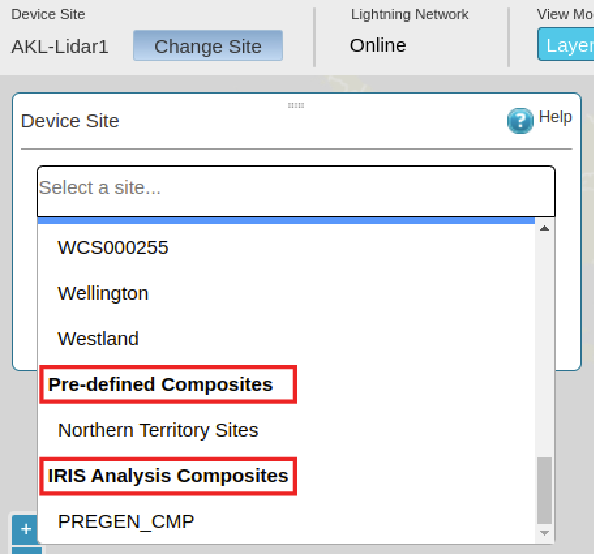

If you do not see the composite you want, contact your administrator to configure it for you. - On the Weather Products pane, select the product and data type.
-
To change the composite method, on the Weather Products pane, select an option under Composite Method.
For dynamic composites, the default composite method is Maximum.
- To view a cross-section of the composite data, select Cross Section.