
Product layers
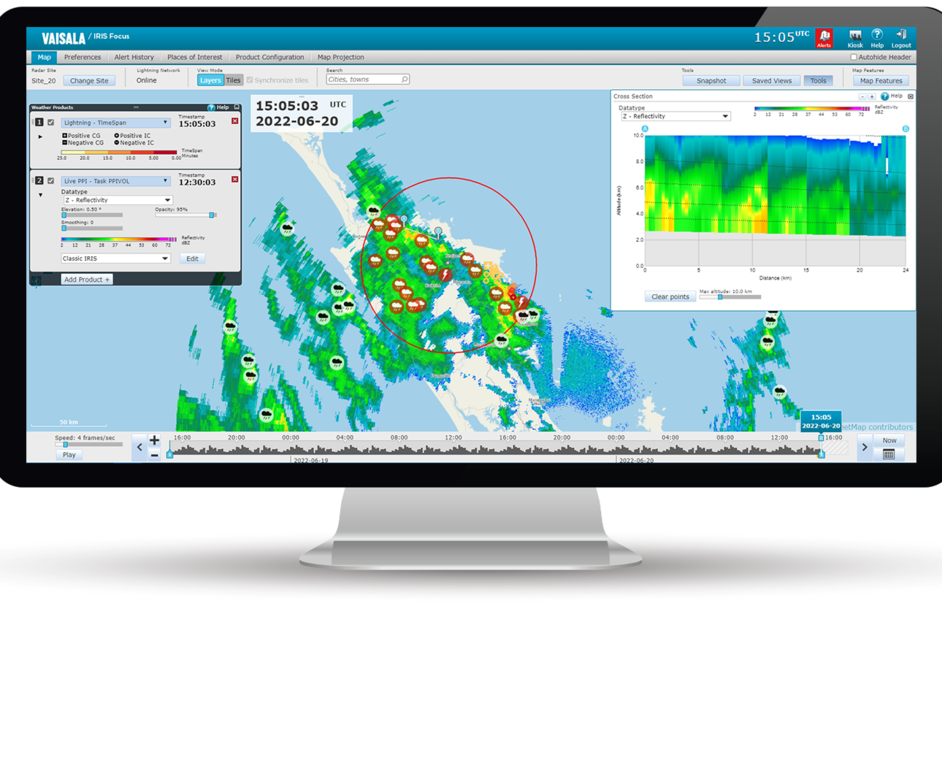
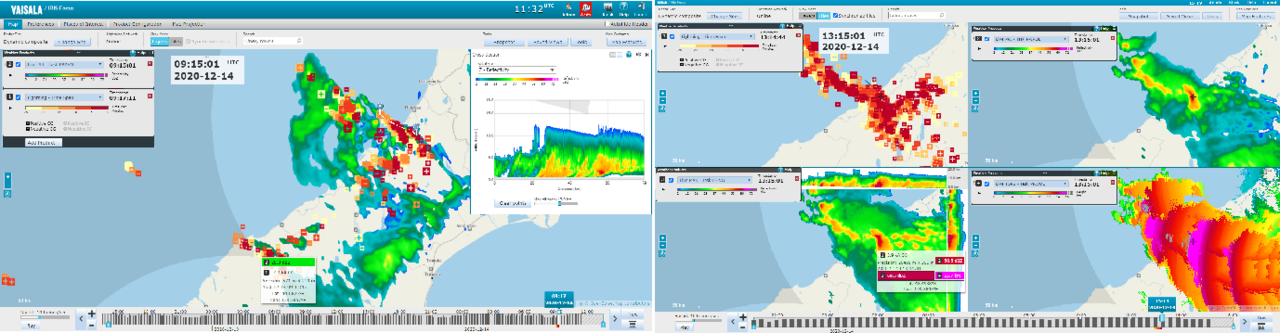
IRIS Focus supports up to 4 simultaneous weather product layers that can be displayed on top of each other (Layers mode) or in separate tiles (Tiles mode).
The Weather Products pane lists the active product layers.
 | Each additional layer requires more processing capacity from the system. To improve performance, avoid showing unnecessary product layers on screen. |
Tiles Mode
In Tiles mode, the tiles are synchronized by default.
When synchronized, all tiles pan and zoom automatically to the same coordinates when you interact with one of the tiles.
To disable the synchronization, deselect the Synchronize tiles check box.
 |
The Tiles mode is not available in the kiosk role. |
Layers Mode
In Layers mode, the layers are drawn on the screen in the same order as they are listed on the Weather Products pane. The top layer in the pane is also drawn on top in the map view.
To change the order of the layers, drag them to new positions in the pane. IRIS Focus re-draws the products on the map view using the new layer order.
In Layers mode, the first layer always defines the overall presentation of the map view. For example, the range rings around the radar site are based on layer 1, so if the products on layer 1 and 2 have respective ranges of 100 and 250 km, the range rings on the map view are drawn only up to 100 km, which is the maximum range of the product on layer 1. The weather data from layer 2 is still drawn on the map, even though it "appears" to be outside the radar range. This also affects radar products that include some additional UI elements, such as Maximum Data (MAX).