
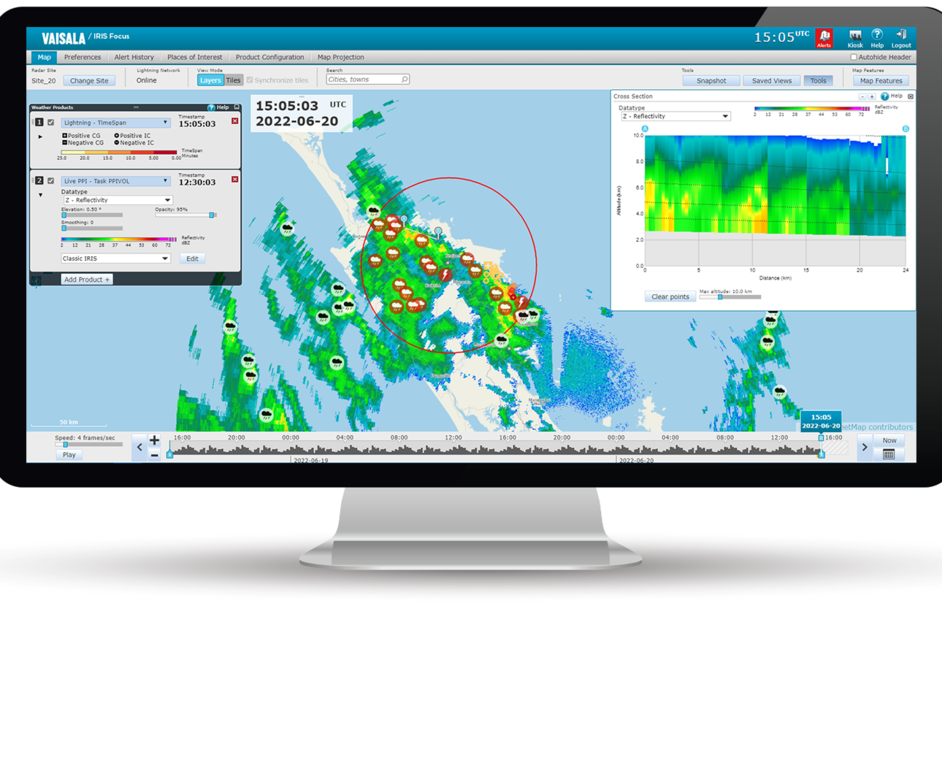
Ruler Tool
Use the Ruler Tool to measure the distance between points on the map.
- On top right of the map view, select .
-
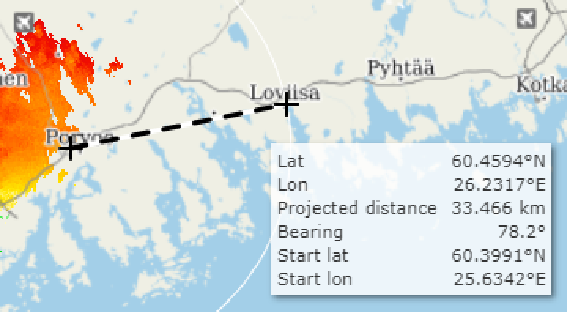
On the map view, click the start point, slide the mouse, and click the end point.
By default, it shows the latitude and longitude of the end point, the latitude and longitude of the starting point, and the projected distance.
-
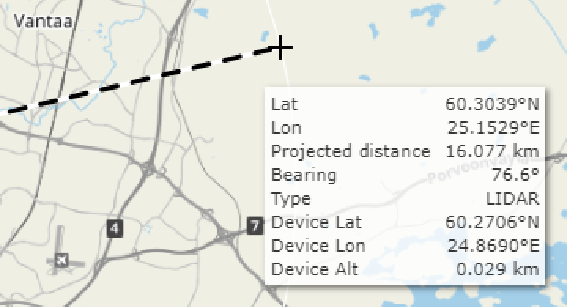
If you hold down the Shift key before making a measurement and have a single radar or lidar site selected, the
ruler tool will set the starting point to the device location and include the device type
in the values shown.
-
If you hold down the Shift key before making a new measurement, you have a single radar or lidar site selected,
and you are displaying at least one PPI product with an elevation, the ruler tool will
display all of the available measurements calculated using the elevation of the first PPI
product.
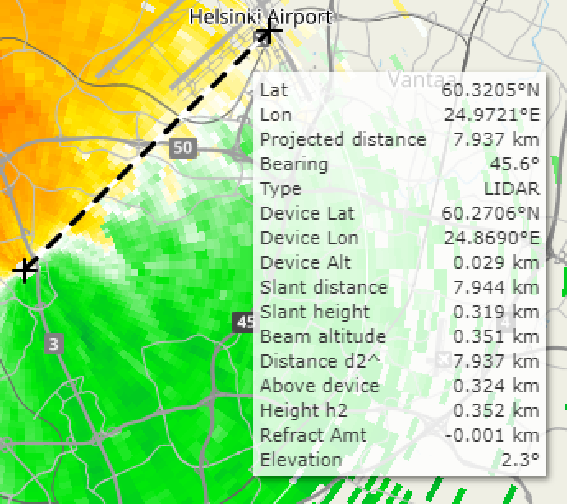
- After making a measurement, the panel will stick to the original end point. You can reposition the map if the panel is covering information of interest.
- When you are finished, on the menu bar, select Ruler Tool to disable the tool.